













.webp?width=250&height=131&name=how-to-use-gdms-q1-2024%20(1).webp)












6 Minute Read or listen
GDS Manager 2 is our next-generation software platform built exclusively for Grandstream GDS3720 Series door stations. It is designed for organizations that want control over their security infrastructure. GDS Manager 2 has numerous tools and key benefits that streamline administration, enhance security, and support organizations. It is ideal for office buildings, schools, universities, healthcare facilities, warehouses, manufacturing, and multi-site businesses.
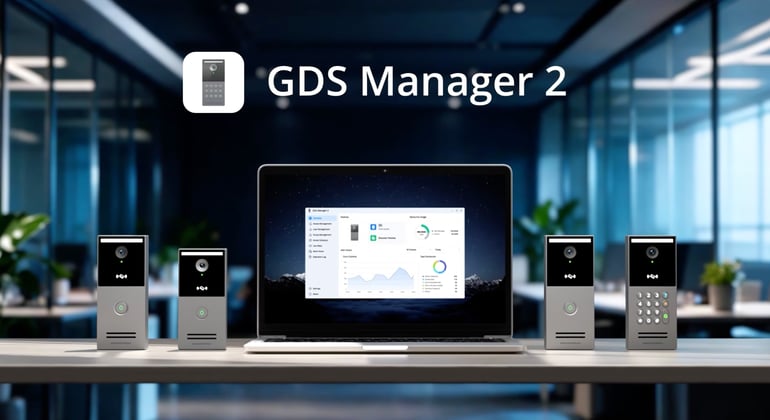
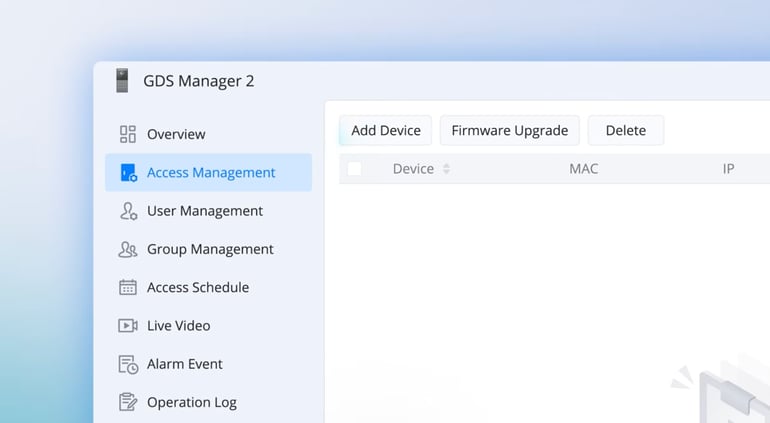
GDS Manager 2’s application interface is broken down into eight main tabs: Overview, Access Control Management, User Management, Group Management, Access Schedule, Live Video, Alarm Event, and Operation Log. These tabs help organizations manage and monitor their GDS devices efficiently and easily. In this blog post, we’ll cover the key features of the GDS Manager 2 interface, access control settings, and how it improves organizations’ control over door stations.
GDS Manager 2 is available for download and installation on Windows. It requires a 64-bit version of Windows 10 or later. You can download/install GDS Manager 2 and refer to our user guide here.
Interface Tabs
Overview
The Overview tab shows summaries of the GDS device system status, device activity, storage usage, and alarm event statistics. This interface shows the total number of access control devices and an option to Discover Devices in the Access Control Management tab. It also shows GDS Manager 2 storage, including recorded events, snapshots, and other access control data. The overview also displays alarm statistics and events in a chart, and the time range can be modified to include the last 24 hours, 7 days, or 30 days.
Access Control Management
The Access Control Management tab allows users to add, delete, search, refresh devices, as well as complete firmware upgrades and monitor device statuses. By using the Discover Devices window, devices are added manually or automatically (if GDS Manager Mode is activated on the GDS device) with the device’s IP address, Port Number, Name, and Admin Password. Users can search and refresh devices through the search bar and refresh icon, and they can delete and/or perform firmware upgrades for selected devices or devices in bulk. Furthermore, users can synchronize user information, schedules, and holiday lists in two ways. They push it from GDS Manager 2 to the devices, or retrieve it from the devices into GDS Manager 2.
User/Group Management
The User Management tab is the centralized administration tab where organizations create user profiles, access credentials in the system, configure device permissions, and manage device associations. User profiles are created manually with the Create User function or imported with the Batch Import function. Previously added profiles can be associated or disassociated either by adding new associations, overwriting existing associations and applying the new selection, or removing association from a selected GDS device.
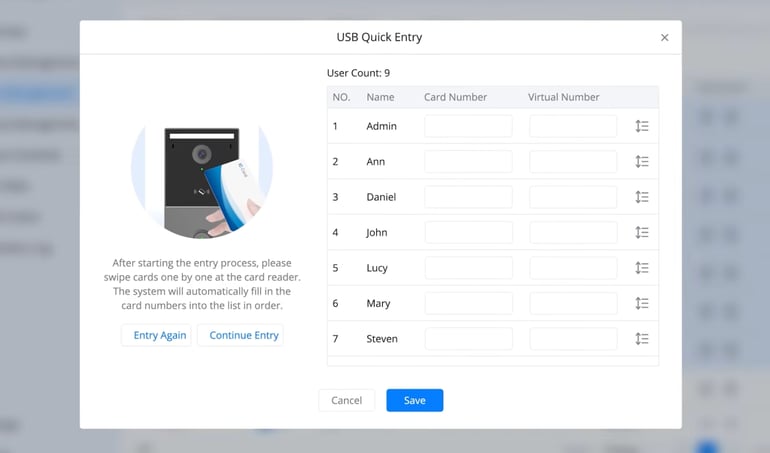
GDS Manager 2 supports the Quick Entry tool for users to simplify access card enrollment. Admins scan cards using the Grandstream USB RFID card reader to scan and add them to the system. The Quick Entry tool binds existing user cards and creates new user profiles just by swiping their cards. The last module in the User Management tab, Batch Configuration, lets organizations configure card statuses, modify card validity periods, and assign access schedules for controlled permissions. User data is available to export for backup or reporting usage. Additionally, the interface provides tools to filter user profiles or search for them in the search bar. The Group Management tab allows organizations to create, delete, and search for user and device groups. Devices and users are added to or deleted from a device group or user group.
Access Schedule
The Access Schedule tab lets organizations define when users can access GDS devices. It supports up to 50 access schedules (weekly or “All Day”) and up to 10 holiday entries, which can be imported by country/region and year.
Live Video
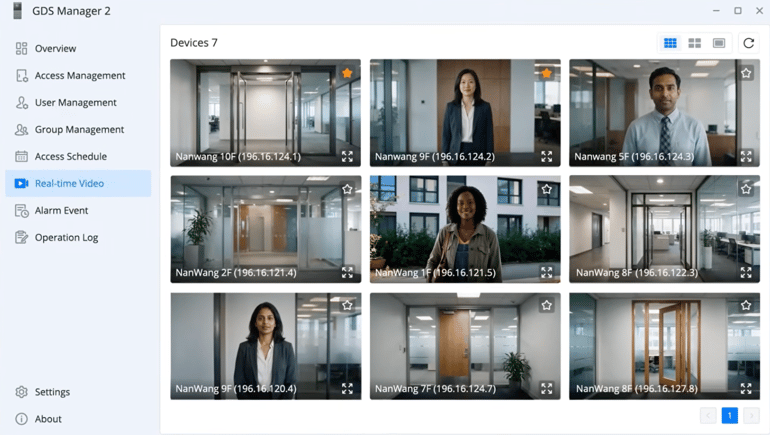
The Live Video tab displays the real-time video streaming from the connected GDS devices. Users monitor the live activity video feeds from the system. They can change the layout of the video feed display and refresh the feed for the updated stream status. Users are notified if alarms are triggered on any of their GDS devices right on the live video tab, with red, orange, and yellow color highlights representing the alarm severity levels.
Alarm Event/Operation Log
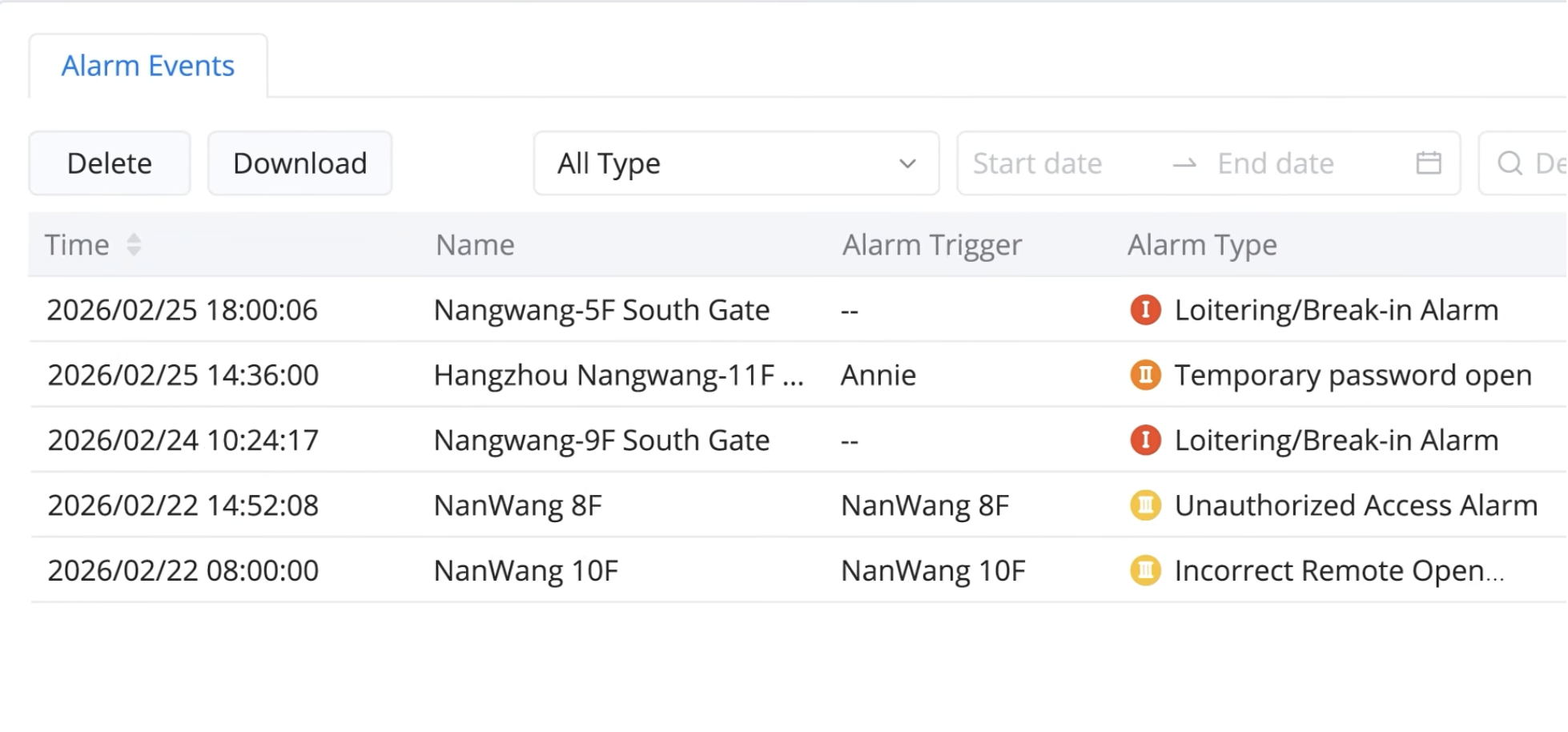
The Alarm Event tab shows the alarm activity throughout all the connected GDS devices. Users may search alarm events by the device name and filter based on alarm type, all within a specified time duration.
The Operation Log tab is where all records of system activities are stored. The module shows all actions performed for monitoring, auditing, and troubleshooting activities. In this tab, users filter events by status, target, and module, or clear and export operation logs from the system.
GDS Manager 2 allows organizations to take control over their GDS devices and security network. With eight main tabs, users can monitor and manage permissions, user profiles, access control, live video feeds, and more for their device deployment. GDS Manager 2 is a secure, scalable, and easy-to-manage access control solution that delivers the visibility and control your organization needs.
Download GDS Manager 2 Software v1.1.16 here.
Learn more about GDS Manager 2 by visiting our user guide here.
Check out a visual overview by watching our video here.
Explore the GDS3720 series door stations by viewing the product page here.