










.webp?width=250&height=131&name=how-to-use-gdms-q1-2024%20(1).webp)











Grandstream's Free Mobile App for GWN7062E/ET/M Routers
6 Minute Read or Listen
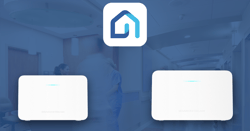
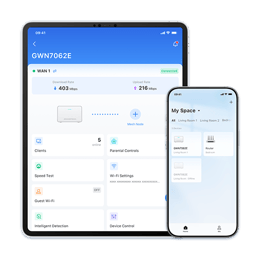
For a SoHo IT infrastructure, Wi-Fi and networking deployments need to be both streamlined at scale and robust in capabilities to help individuals and small teams do more with fewer resources. In these deployments, users may not have their own IT administrator or resources to dedicate to outsourcing IT assistance, and as a result, a backend network infrastructure commonly needs to provide a user-friendly management platform. Grandstream Home is our solution for giving users robust control of their home or small-office networks. Supporting our GWN7062E, GWN7062ET, and GWN7062M SoHo routers, the app allows a user to set up, control, monitor, and troubleshoot their network entirely from their phone. In this blog post, we provide insight into Grandstream Home, its capabilities, and how it can be leveraged to give users more control over their network.
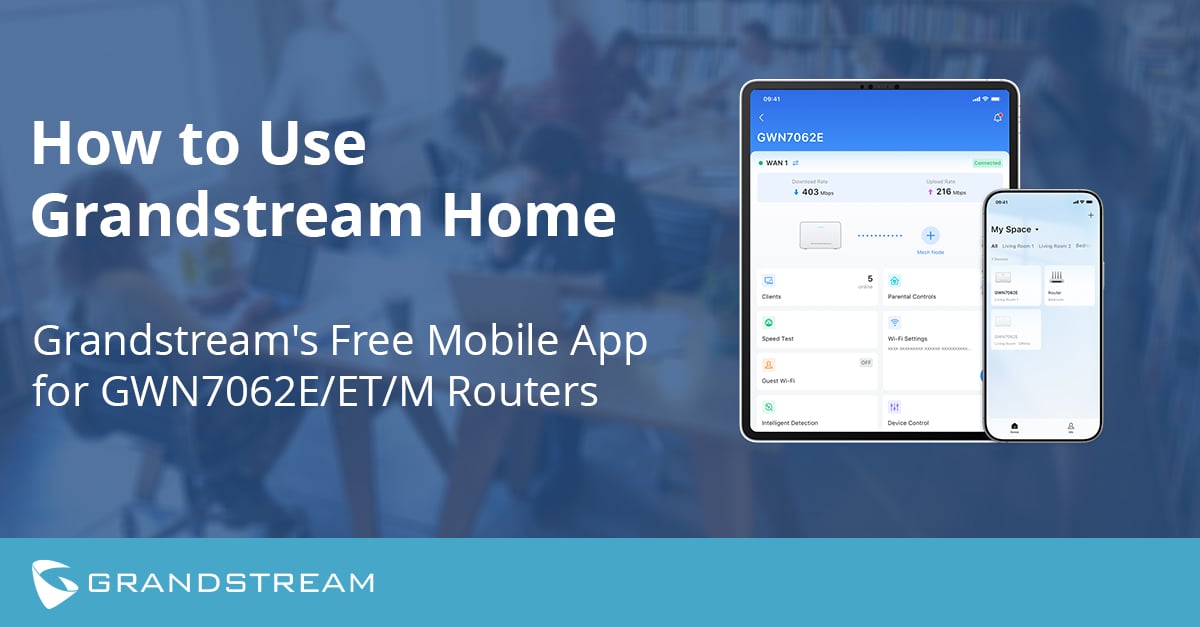
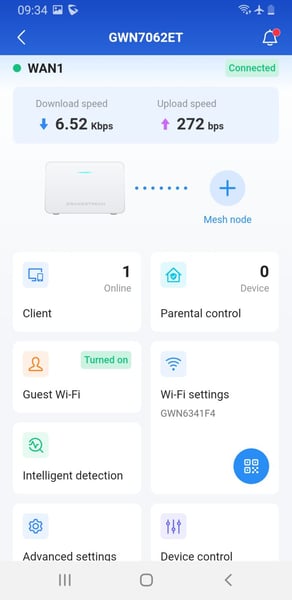 Grandstream Home offers flexible, user-friendly methods for adding Grandstream GWN7062E/ET/M routers to the app's management dashboard. Routers can be added by a manual entry of the device's MAC address and initial password, by a QR code scan, or by the router model's step-by-step setup wizard. After the device is added to Grandstream Home's dashboard, it can be assigned under a specific room for easier organization. From here, the GWN7062E/ET/M router can be selected, edited, and monitored.
Grandstream Home's Intelligent Detection feature is a user-friendly diagnostic tool that helps users, such as parents or small office business administrators, identify and troubleshoot connectivity or performance issues. This allows end-users to distinguish technical issues and resolve them without involving the IT integrator who installed the network, providing them with more autonomy. The Intelligent Detection feature analyzes these key areas:
-
Security Protection: Evaluates the status of firewall rules and access controls to ensure the network is secure.
-
Network Connectivity: Checks the health of WAN link, confirming proper physical and logical connections.
-
Connection Rate: Displays the link status and negotiated maximum speed of each network port. It also shows the connection status and speed of any connected sub-routers.
-
Signal Quality: Indicates the quality of the wireless channel. It reflects factors like interference and channel stability.
Network Control and Management
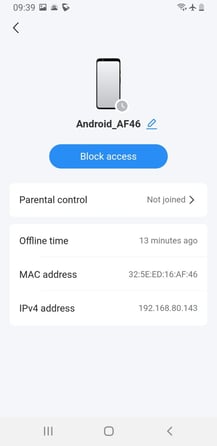 A wide set of easily accessible settings allows users to take more control of their GWN7062E/ET/M router's network. Client management configurations can be used to actively view online, offline, and blocked client devices through a simplified user interface. For each individual client, the network administrator can view more details, move the device on and off a blocklist, and enable parental control settings. In deployments with public Wi-Fi access, such as a cafe, the ability to block devices extends to offline devices as well, preventing them from reconnecting without permission. For parental controls, internet access rules set how many times a device can access the internet and the maximum time a client can be on. Additionally, a wide range of web categories can be actively managed to allow or deny client access.
Beyond individual client device management, Grandstream Home provides a straightforward process for expanding the network and sharing it with guests or customers. Through the app's Wi-Fi management settings, a guest network on a GWN7062E/ET/M router can be created, have its access and use restrictions configured, and isolated from critical employee networks. This can also be used in home office environments to create a separate SSID for the office and the rest of the home, ensuring the performance of all office devices despite the load on the home network. Additionally, guest networks in an office or commercial deployment provide visitors with their own Wi-Fi connection while protecting the primary business network.
Finally, Mesh connections can be configured through Grandstream Home for large deployments of GWN7062E/ET/M routers and supported GWN Wi-Fi Access points. A Mesh setup wizard guides users through the connection process, making it easy to expand their network. Mesh networks can be configured in two different ways:
-
Wired Mesh: Expands the network using Ethernet cables between nodes for a stable connection
-
Wireless Mesh: Connects nodes over Wi-Fi for flexible, cable-free coverage.
Advanced Network Security
 Grandstream Home provides advanced network security features for everyday SoHo users through a set of straightforward, app-managed tools. A built-in firewall allows users to enable basic firewall settings, keeping their IT infrastructure and devices within it secure from malicious software and websites. The Intelligent Detection feature mentioned earlier in this post can be used to evaluate the status of firewall rules and access controls to ensure the network is secure. When it comes to data protection, Grandstream Home takes a privacy-first approach. Device configuration data is stored on GWN7062E/ET/M routers themselves, rather than in the cloud. Additionally, the guest network isolation and device blocklist settings work together with the Intelligent Detection feature to add additional defensive layers. The result is a security setup that is robust enough to provide genuine peace of mind, yet simple enough for any user to manage on their own.
More on Grandstream Home and the GWN7062E/ET/M Routers
Now that you've learned about Grandstream Home and how it allows you to set up, control, and monitor home networks from your mobile phone, take a look at some of our other resources related to the app.
Visit Grandstream Home's product page for a centralized resource on the app.
Access Grandstream Home's technical documentation here.
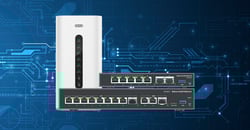
Learn more about the GWN7062E/ET and GWN7062M, which Grandstream Home supports