

Android 14, real-time voice changing, and customizable menus arrive on Grandstream's most versatile HD intercom and facility control station.
When an unknown visitor rings the intercom at a facility — a reception desk, a condominium, a server room, a warehouse — the person answering on the other side of the screen doesn't always want to reveal who they are. Grandstream has just solved that friction point with a new firmware update for the GSC3575, its HD intercom and facility control station, which also expands the security and operational flexibility of the entire device.
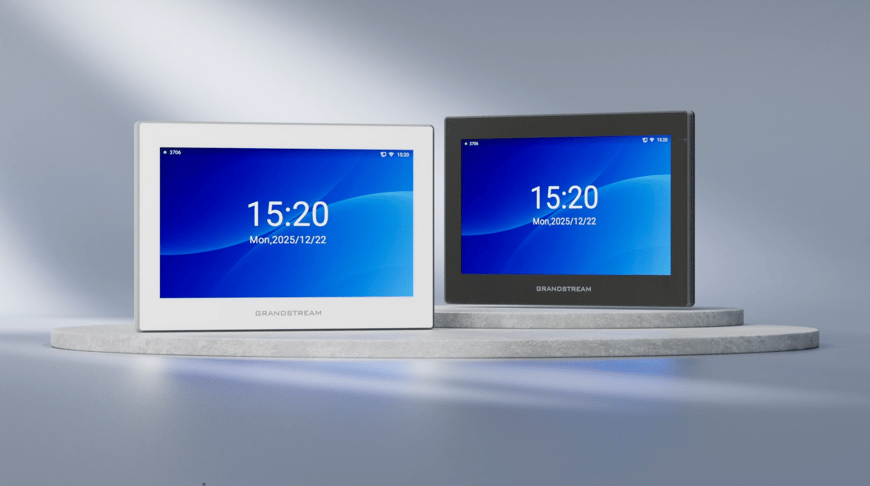
Android 14: A Stronger Foundation
The migration from Android 13 to Android 14 is more than just a version number. It translates into a smoother experience for the operator, reinforced privacy controls, and more robust security capabilities at the operating system level — all without sacrificing the compatibility the GSC3575 already had with lighting, HVAC, scheduling, and other smart office applications available on the Google Play Store.
For integrators deploying the GSC3575 in environments where compliance and data protection are critical — corporate offices, hospitals, government facilities — this update represents an extra layer of peace of mind, with no hardware replacement required.
Voice Changer: The New Layer of Conversational Security
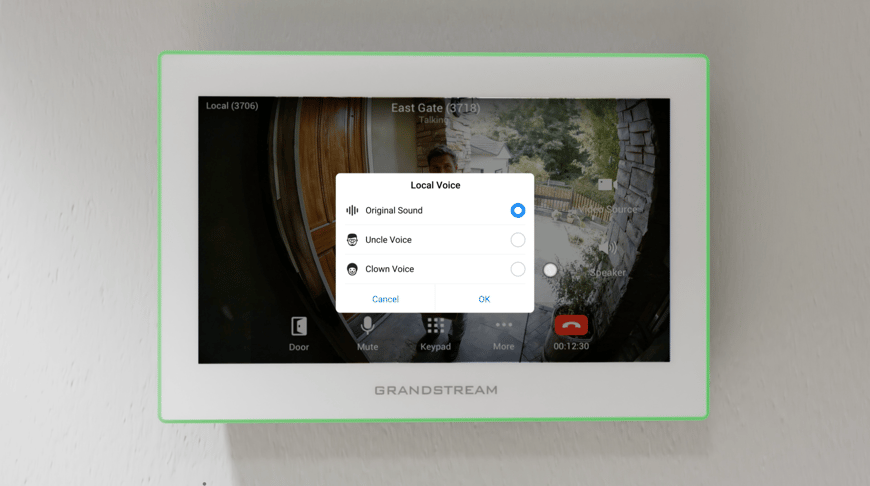
The most disruptive feature of this update is, without a doubt, the real-time voice changer. Now, when a user receives an intercom call from an unknown visitor, they can select a voice model different from their own before responding.
Picture a real-world scenario: a delivery courier rings the intercom at a reception desk or a residence. The person answering — whether a security guard, receptionist, or homeowner — can respond in a completely different voice from their own:
"Just leave it at the door. I'll grab it later. Thanks."
Without revealing their real identity, without compromising their privacy, and without losing a second of the full-duplex HD two-way communication that already characterizes the GSC3575. This feature is designed to reinforce the personal security of whoever operates the device, especially in unattended reception scenarios, night shifts, or facilities with high traffic from unknown visitors.
Customizable Menus: The Device Adapts to the Environment, Not the Other Way Around
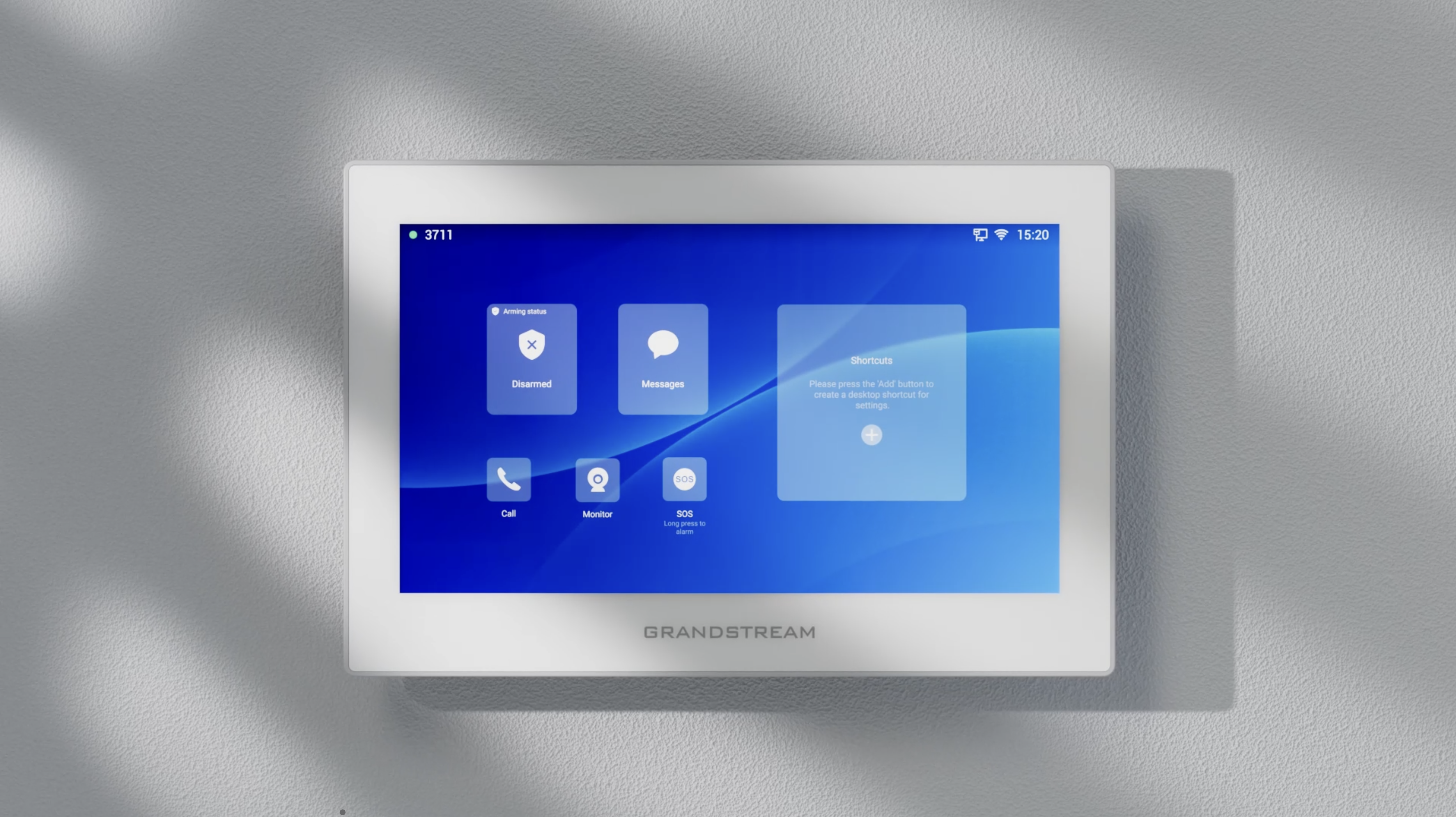
The third major improvement addresses a need integrators know well: every installation is different. A hotel needs quick access to "Room Service" and "Front Desk"; a corporate office needs direct buttons for "Conference Room" and "Security"; a condominium needs "Gate" and "Common Areas."
With the new menu customization capability, integrators can now adapt the layout of the GSC3575's shortcuts according to the deployment environment, increasing both operational efficiency and the perception of a system tailored to each end customer.
A Platform That Keeps Growing
The GSC3574 and GSC3575 already stood out for their 7" touchscreen, full-duplex two-way HD audio, dual-band Wi-Fi 6, 8 alarm inputs and 2 alarm outputs, and native integration with the full range of Grandstream's GDS and GSC solutions. With this firmware update, the device consolidates its position as the most complete and flexible facility control station in the Grandstream portfolio — with no new hardware investment required.
How to Update a GSC3575 Already in Service
For devices already installed and operating in the field, it's important for integrators and support teams to keep in mind that migrating from Android 13 to Android 14 requires resetting the device to factory settings before applying the OS update. For that reason, the recommended process is as follows:
- Back up the device's current configuration, especially if it is already in active service within an installation.
- Use a microSD card to store that backup before proceeding.
- Reset the device to factory settings.
- Apply the operating system update, from Android 13 to Android 14.
Following this order prevents the loss of custom configurations — SIP accounts, menus, third-party integrations — on devices that are already part of an active installation. Contact your Grandstream representative or authorized distributor for the detailed procedure and the step-by-step firmware update guide.